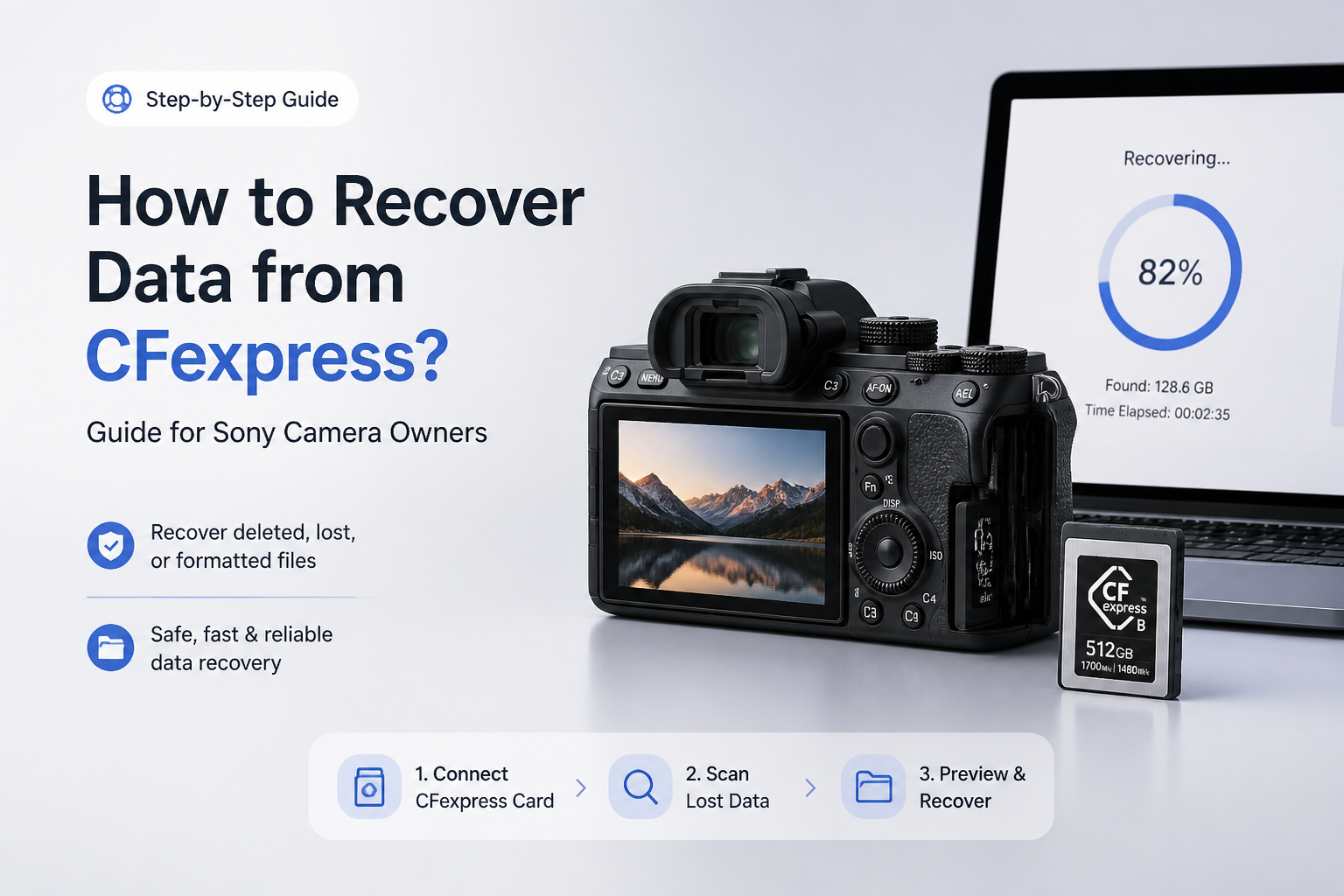
How to Recover Data from CFexpress? Guide for Sony Camera Owners
Missing ARW photos or XAVC footage does not always mean the files are gone. Stop using the card, then choose the least risky recovery path for its condition.
Stop recording to the CFexpress card immediately. Connect it through a compatible reader, scan the complete device with Disk Drill’s Advanced Camera Recovery mode, then restore files to a different drive. If the card behaves erratically, create a byte-to-byte image before scanning.
Do not format, initialize, repair, or record to the card. New Sony footage may overwrite deleted media. If the card is physically damaged, reports zero capacity, or repeatedly disconnects, unplug it plus consider a recovery lab.
Recover Deleted Sony Camera Files → Disk Drill
Advanced Camera Recovery handles CFexpress Type A, B, or C media · Supports Sony recording structures plus ARW photos · Windows or Mac
Choose a Sony CFexpress Recovery Method
Match the method to the card’s symptoms before starting.
| Method | Best for | Time | Success rate |
|---|---|---|---|
| 1. Scan the CFexpress Card With Disk Drill TRY FIRST | Deletion, quick format, missing Sony media | ~20–90 min | ● 82% |
| 2. Create a Byte-to-Byte Image Before Recovery | Unstable or aging CFexpress cards | ~30 min–3 hr | ● 76% |
| 3. Try Sony Memory Card File Rescue | Supported Sony cards plus common media | ~20–120 min | ● 64% |
| 4. Repair the Sony Image Database | Files missing only during camera playback | ~2–10 min | ● 55% |
| 5. Send the CFexpress Card to a Recovery Lab | Dead, damaged, or irreplaceable media | ~3–15 days | ● 70% |
What Sony CFexpress Data Loss Usually Looks Like
Accidental deletion is the simplest case. A quick in-camera format can still leave file content behind until new recording overwrites those sectors. Interrupted video, card errors, or a damaged image database create a messier situation where clips may exist as fragments rather than normal files.
The card’s behavior matters more than the error message. A stable card showing its normal capacity is a reasonable DIY candidate. A card that is hot, invisible, or constantly reconnecting should receive fewer power cycles.
When Not to Scan a Sony CFexpress Card at Home
Skip software recovery if the card is physically cracked, exposed to liquid, visibly scorched, or detected with zero capacity. The same caution applies to client footage whose loss would create serious legal or financial consequences.
Repeated scans do not improve damaged hardware. Each read attempt can make an unstable card worse, so preserve its current condition for a lab when the files justify professional help.
Top 5 Ways to Recover Data From a Sony CFexpress Card
01 Scan the CFexpress Card With Disk Drill
Best first move for deleted Sony photos, formatted cards, or missing video clips
~20–90 min
Scan the CFexpress Card With Disk Drill
Best first move for deleted Sony photos, formatted cards, or missing video clips
Disk Drill is the most practical first scan when the CFexpress card still appears in Windows Disk Management or macOS Disk Utility. Its Advanced Camera Recovery mode is built to reconstruct fragmented camera media, including Sony footage plus ARW photos.
- Stop using the card, remove it from the Sony camera, then slide it into a compatible CFexpress reader.
- Connect the reader directly to the computer. Skip unpowered USB hubs if the card disconnects or appears intermittently.
- Install Disk Drill on the computer’s internal drive or a separate external disk, never on the affected card.
- Select the complete CFexpress device, choose Advanced Camera Recovery, then identify the Sony camera model if requested.
- Let the scan finish. Preview several ARW, JPEG, MP4, or MXF files, including clips from different parts of the shoot.
- Select the usable files, click Recover, then save them to another drive with enough free space.

02 Create a Byte-to-Byte Image Before Recovery
Safer for unstable cards, read errors, heat, or repeated disconnections
~30 min–3 hr
Create a Byte-to-Byte Image Before Recovery
Safer for unstable cards, read errors, heat, or repeated disconnections
A card that vanishes, becomes unusually hot, or reports read errors should not endure several full scans. A byte-level image captures every readable sector once, letting you perform later recovery work on the image instead of the original CFexpress media.
- Prepare a healthy drive with free space slightly greater than the full card capacity. A 160 GB card needs more than 160 GB available.
- Connect the CFexpress card through a stable reader, then open Disk Drill.
- Open Byte-to-byte Backup, select the complete physical card, then choose a destination on the healthy drive.
- Start the backup. Do not use the Sony camera, eject the reader, or let the computer sleep during imaging.
- When the image is complete, safely disconnect the original card plus store it somewhere dry.
- Attach the image file in Disk Drill, then run Advanced Camera Recovery or a universal scan against that image.
03 Try Sony Memory Card File Rescue
A free fallback for supported cards plus common Sony photo or video formats
~20–120 min
Try Sony Memory Card File Rescue
A free fallback for supported cards plus common Sony photo or video formats
Sony offers Memory Card File Rescue for photos or videos deleted from supported memory cards. It can be worth a pass if Disk Drill finds nothing, especially when the card is readable plus the loss is logical rather than physical.
- Confirm that the computer sees the CFexpress card at its correct approximate capacity.
- Download Memory Card File Rescue from Sony’s official support site for the card model or region.
- Install the utility on the computer, keeping all software off the affected card.
- Select the CFexpress card as the source, then choose a folder on another drive for recovered files.
- Run the search without formatting, repairing, or writing anything to the card first.
- Open recovered files in Sony-compatible software, then inspect long clips beyond the first few seconds.
04 Repair the Sony Image Database
Useful when files exist but thumbnails or clips are missing inside the camera
~2–10 min
Repair the Sony Image Database
Useful when files exist but thumbnails or clips are missing inside the camera
Sony’s Recover Image DB feature repairs management records used to display media in-camera. It may restore access when a recording interruption or computer-side file operation made the database inconsistent, but it does not undelete overwritten footage.
- First copy every file that remains accessible to another drive.
- Return the CFexpress card to the original Sony camera if possible.
- Fit a fully charged battery or use a dependable external power source.
- Open the camera menu, find the media settings, then select Recover Image DB for the correct slot.
- Wait for the operation to finish without opening the card door or removing power.
- Check playback, then connect the card reader to the computer plus copy any newly visible clips immediately.
05 Send the CFexpress Card to a Recovery Lab
The cautious choice for physical damage or irreplaceable paid work
~3–15 days
Send the CFexpress Card to a Recovery Lab
The cautious choice for physical damage or irreplaceable paid work
Software cannot help when the card never appears, shows zero capacity, has damaged contacts, or disconnects under every reader. A specialist may work around controller failure or read memory components with dedicated hardware.
- Stop powering the card if it is cracked, wet, burnt, bent, or becoming hot within seconds.
- Place it in its protective case. Do not clean the contacts with abrasives or open the shell.
- Contact a lab that specifically handles CFexpress, NVMe-based flash media, plus Sony camera files.
- Ask whether evaluation is free, whether payment depends on recovery, plus how client footage is protected.
- Describe the exact loss event, Sony camera model, card model, recording format, plus every recovery attempt already made.
- Approve recovery only after receiving a file list, sample previews, price, plus return terms in writing.
Which Sony CFexpress Recovery Method Should You Use?
Start with Disk Drill if the computer detects the CFexpress card at roughly the right capacity. Use Advanced Camera Recovery for Sony video, or make a byte-to-byte image first if the card is unstable.
Sony Memory Card File Rescue is a reasonable free fallback. Use Recover Image DB only for an in-camera catalog problem, while physical failure belongs with a flash-recovery lab.
Keep the original card untouched until every recovered ARW photo plus video clip has been opened, copied twice, then checked through its full duration.