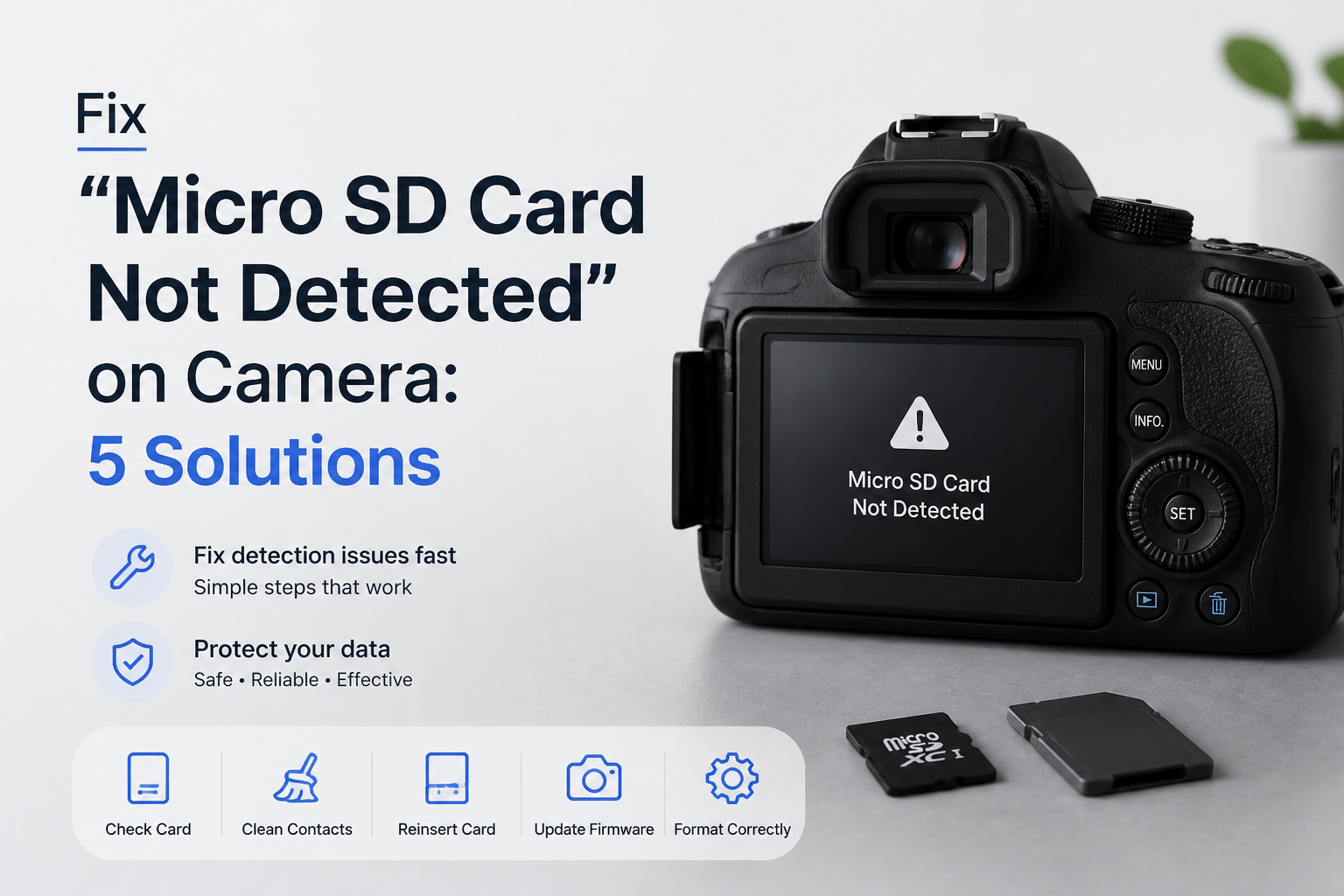
Fix “Micro SD Card Not Detected” on Camera: 5 Solutions
A missing microSD card does not always mean the photos are gone. Start with the harmless checks, then protect the files before formatting or replacing anything.
Turn the camera off, reseat the card, check the adapter lock, then test the card in a computer reader. If the computer detects it but asks to format, recover or copy the photos before making changes.
Do not format, initialize, repair, or record onto the card if it holds files you still need. Those actions may overwrite recoverable photo or video data.
Recover Photos Before Formatting → Disk Drill
Scans microSD cards visible to the computer · Previews found photos plus videos · Available for Windows plus Mac
Choose the Right Fix for a MicroSD Card Your Camera Cannot Detect
Begin with the least destructive check, then move down based on what the camera or computer can see.
| Method | Best for | Time | Success rate |
|---|---|---|---|
| 1. Reseat the MicroSD Card TRY FIRST | Sudden detection failures | ~3 min | ● 78% |
| 2. Check the Card Format Plus Capacity | New or repurposed cards | ~5 min | ● 70% |
| 3. Test the Card on a Computer | Finding the failed device | ~10 min | ● 82% |
| 4. Recover the Files With Disk Drill | Unreadable cards visible to a computer | ~20–60 min | ● 68% |
| 5. Isolate a Camera or Card Failure | Persistent slot or card errors | ~15 min | ● 90% |
What the Camera's Memory Card Message Usually Means
“No card” often points to poor contact, an unsupported card, or a failed slot. “Card error” suggests the camera can communicate with the card but cannot read its file system reliably.
A format request is not proof that the card is empty. It means the device cannot use the current storage structure, so file recovery should come before formatting.
When Software Cannot Fix an Undetected MicroSD Card
Recovery software needs the computer to detect a physical storage device. If the card is absent from Disk Management on Windows plus Disk Utility on Mac, shows no media, or constantly disconnects, repeated scans will not fix the electrical or controller failure.
For irreplaceable work, wedding footage, or paid client photos, stop experimenting after basic reader tests. A data recovery lab can examine the card without relying on the damaged camera slot.
Top 5 Solutions for a MicroSD Card Not Detected by a Camera
01 Reseat the MicroSD Card
Start here when the camera suddenly stopped recognizing a card that worked before
~3 min
Reseat the MicroSD Card
Start here when the camera suddenly stopped recognizing a card that worked before
A slightly loose card, dirty contact, or faulty SD adapter can make a camera report that no card is installed. This quick check does not erase your photos.
- Turn the camera off, then remove its battery if the battery is removable.
- Take out the microSD card plus its full-size SD adapter, if one is being used.
- Inspect the card for cracks, bent plastic, grime, or worn gold contacts. Wipe the contacts gently with a dry, lint-free cloth.
- Check the adapter's lock tab. Move it fully to the unlocked position, then try a different adapter if one is available.
- Insert the card firmly until it clicks or sits level, reinstall the battery, then turn on the camera.

02 Check the Card Format Plus Capacity
Useful for a new card or one previously used in a phone, drone, dashcam, or computer
~5 min
Check the Card Format Plus Capacity
Useful for a new card or one previously used in a phone, drone, dashcam, or computer
Cameras have limits on card capacity, speed class, plus file system. A card can be perfectly healthy yet remain invisible because the model does not support its size or format.
- Look up the maximum microSD, microSDHC, or microSDXC capacity supported by the exact camera model.
- Compare the camera's limit with the capacity printed on the card. Older cameras may reject large SDXC cards.
- If the camera can open its storage menu, use the camera's own Format card command after copying every needed file elsewhere.
- If the camera cannot format it, connect the card to a computer, recover or copy the files first, then format it using the file system required by the camera manual.
- Return the card to the camera, then format it once more in-camera before taking new photos.
03 Test the Card on a Computer
This separates a camera problem from a bad card, adapter, or reader
~10 min
Test the Card on a Computer
This separates a camera problem from a bad card, adapter, or reader
A computer can show whether the card is readable, missing a drive letter, unmounted, or physically absent. Testing with more than one reader matters because cheap adapters fail fairly often.
- Place the microSD card in a known-good USB reader rather than relying only on the camera's USB cable.
- On Windows, check File Explorer plus Disk Management. On a Mac, check Finder plus Disk Utility.
- If the card opens, copy the entire DCIM folder to the computer before trying repairs.
- If the card appears in Disk Management or Disk Utility but will not open, do not accept a format prompt while files are needed.
- Try one other USB port, reader, or computer. If no device detects the card at all, skip software repair plus move to the hardware checks.
04 Recover the Files With Disk Drill
Use this before formatting when the computer sees the card but cannot open it
~20–60 min
Recover the Files With Disk Drill
Use this before formatting when the computer sees the card but cannot open it
Disk Drill cannot repair a camera's physical card slot. It can scan a microSD card that appears as a storage device on the computer, which makes it useful before a reformat or card replacement.
- Stop taking photos or writing anything to the card. Connect it through a stable USB reader.
- Open Disk Drill, select the physical microSD card by matching its capacity, then create a byte-to-byte backup first if the card disconnects or behaves erratically.
- Scan the backup image when possible. Otherwise select the card, then start Search for lost data.
- Review the Pictures plus Video results. Preview several files from different dates to check whether they open correctly.
- Select the needed files, click Recover, then save them to the computer or another drive. Never recover them back onto the microSD card.
- After confirming the recovered copies, replace the suspect card or format a healthy card inside the camera.
05 Isolate a Camera or Card Failure
The final check when basic reseating, compatibility checks, plus computer testing do not solve it
~15 min
Isolate a Camera or Card Failure
The final check when basic reseating, compatibility checks, plus computer testing do not solve it
A simple swap test usually identifies the bad part. The result tells you whether to retire the card, reset the camera, update its firmware, or arrange a card-slot repair.
- Insert a known-good card that meets the camera's listed capacity plus speed requirements.
- Test the original card in a second compatible camera or reliable computer reader.
- If only the original card fails, recover its files if possible, then replace it. Do not trust it for another important shoot.
- If every compatible card fails in the original camera, reset the camera's settings using its menu. This should not erase the memory card, though custom camera settings may be cleared.
- Check the camera maker's official instructions for a firmware update that matches the exact model plus region.
- If the slot contains bent pins, will not latch, or rejects every card, stop inserting cards. Ask the manufacturer or a camera repair shop to inspect it.
What to Do With the Undetected MicroSD Card
Reseating the card plus testing another adapter is the sensible first move because it changes no stored data. If a computer sees the card but cannot open it, use Disk Drill or another recovery tool before formatting. A card invisible to multiple computers needs hardware diagnosis rather than another software scan.
Make two verified copies of recovered photos before formatting the card, then replace any card that disconnects, reports the wrong capacity, or fails twice.